
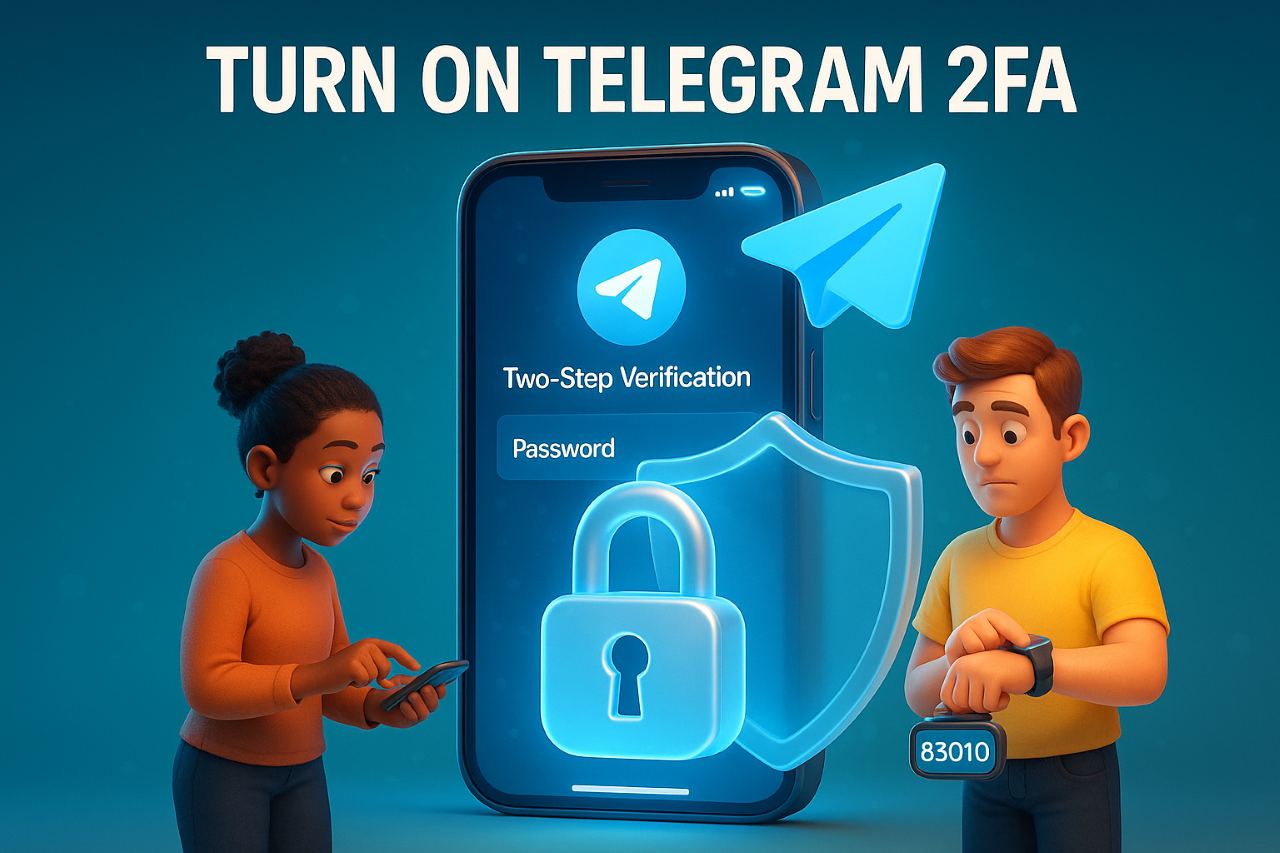
Why “Telegram 2FA” matters right now
Account hijacks don’t start with Hollywood-style hacks—they start with small lapses: a leaked code, an old session, a weak password. Telegram 2FA (Two-Step Verification) adds a second lock to your door: a login password in addition to your verification code, so a phone number alone can’t open the account. Telegram itself frames this as a password that’s required whenever you log in on a new device—on top of the code you receive.
What exactly is Telegram 2FA? (aka Two-Step Verification)
At its core, Telegram 2FA adds a cloud password to your login flow. Any time you sign in on a fresh device, you’ll need:
- the Telegram/SMS login code, and
- your 2FA password.
Telegram recommends setting a recovery email (so you’re not locked out if you forget the password). Keep that recovery email protected with its own strong 2FA.
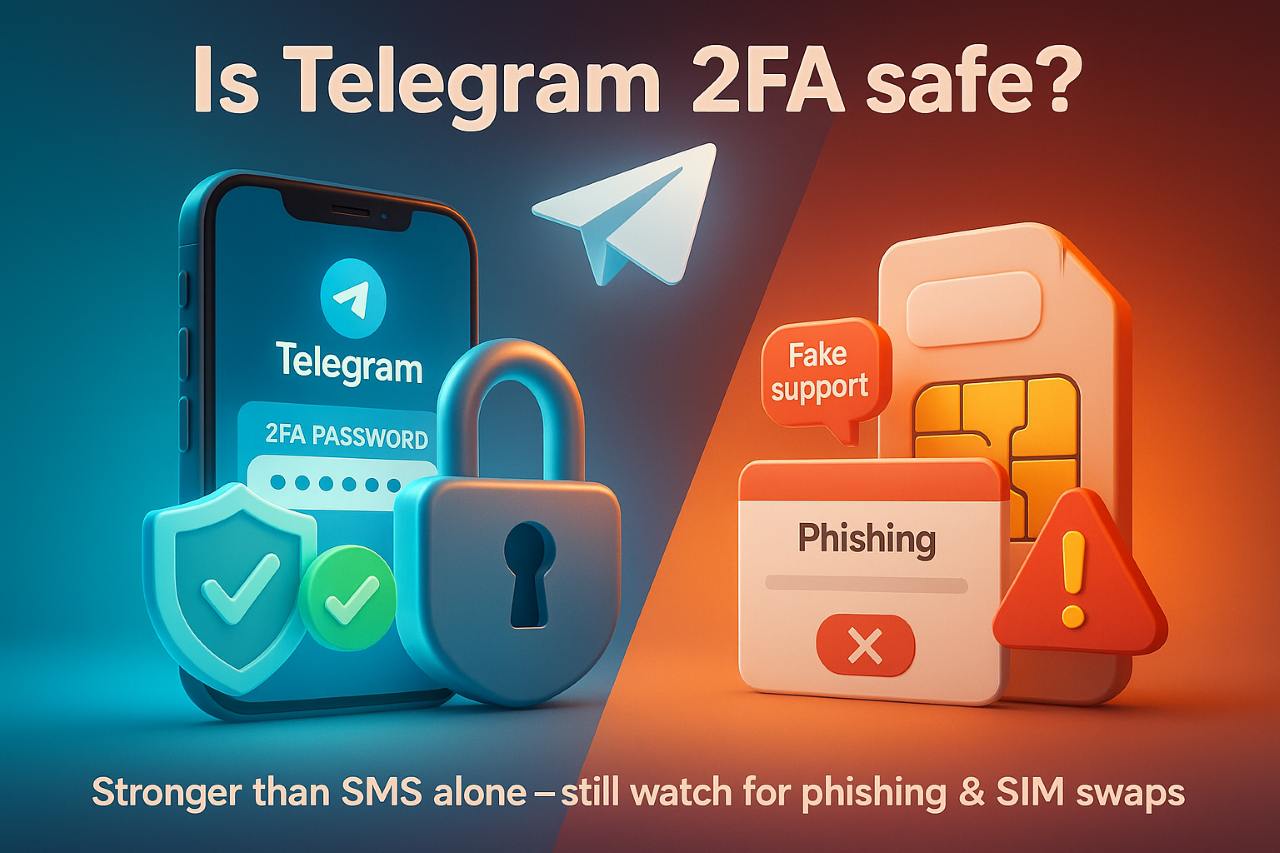
Is Telegram 2FA safe?
Short answer: Yes—if you use it well.
- Stronger than SMS alone. Pure SMS 2FA can be undermined by SIM-swap and interception. A password layer significantly raises the bar.
- Still not a silver bullet. Social engineering (convincing you to read out a code) and malware can defeat the human in the loop. Treat codes like cash; never share them—even if a caller “from support” insists. (Criminals increasingly use automated voice bots to phish OTPs.)
- Where Telegram helps. Telegram encourages non-SMS delivery of codes inside Telegram (encrypted, fast) and lets you review/kill Active Sessions if something looks off.
How to enable 2FA in Telegram?
On iOS & Android
- Open Settings → Privacy and Security → Two-Step Verification.
- Tap Set Password. Create a long, unique passphrase (12+ characters).
- Add a Password Hint (non-obvious).
- Add a Recovery Email and confirm it.
- Done—your next new-device login needs both the code and this password.
On Desktop
- Settings → Privacy & Security → Two-Step Verification.
- Create the password, hint, and recovery email just like on mobile.
Before you turn on Two-Step Verification, skim our Telegram bot token safety checklist—it shows how attackers steal tokens and why a strong 2FA password matters.
Pro tip: While you’re here, visit Devices / Active Sessions and sign out of anything you don’t recognize.
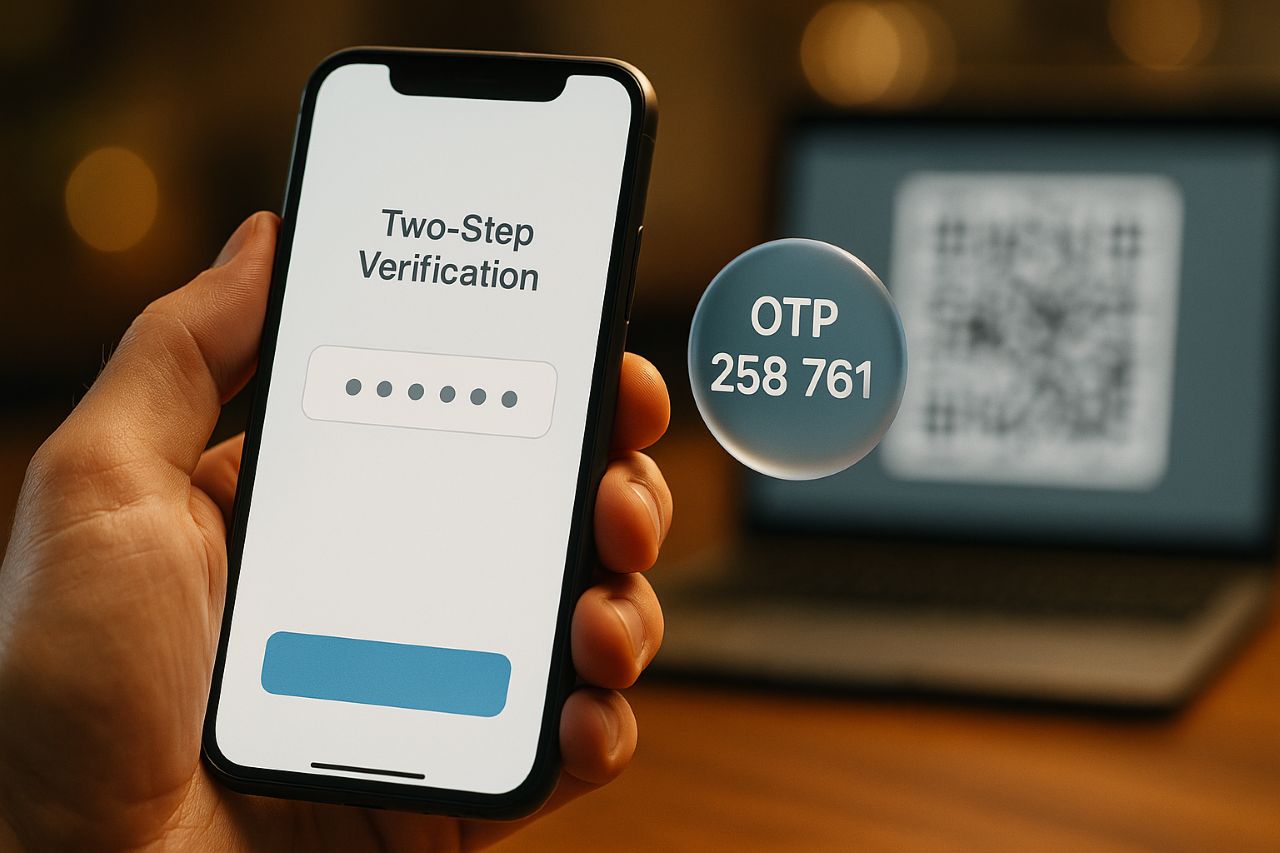
“Telegram 2FA verify”: what you’ll see during login
When you sign in on a new device, Telegram first tries to send your verification code inside Telegram to a device/session that’s already logged in (safer/faster than SMS). If that’s impossible, you may fall back to SMS or other methods. On desktop/macOS, direct SMS login is restricted—you’ll typically confirm via a code in an existing Telegram app or scan a QR code.
Seeing odd “support” messages while verifying? Read our Telegram bot scams in group chats guide to spot OTP-phishing tricks before you enter any codes.
A few behind-the-scenes safeguards help: forwarding/screenshotting a 777000 login message can invalidate the code server-side, making it harder for phishers to reuse it.
“Is Telegram 2FA safe?” vs. “Why is 2FA useless?”
- “2FA is useless.” Not true. What people usually mean is: “SMS-only 2FA is weak.” They’re right about the SMS part—SIM swaps and social engineering exist—but adding a password-based second factor (Telegram’s approach) is a clear upgrade.
- “I had 2FA and still got hijacked.” Often the culprit is an active session on another device, reused passwords elsewhere, or accidentally sharing a code. Regularly audit Active Sessions and never relay codes—no matter who asks.
Verdict: 2FA is not magic, but it dramatically lowers risk when combined with good hygiene.
Your Telegram security checklist (fast win, big payoff)
- Use a strong 2FA password (unique, long, memorable).
- Set and protect your recovery email with its own 2FA.
- Enable App Passcode/biometrics (device-level lock) to stop shoulder-surfers.
- Audit Active Sessions weekly: Settings → Devices / Active Sessions; sign out unknown logins.
- Be OTP-smart: codes arrive via Telegram or SMS; never share, never screenshot; hang up on any call asking for one.
- Watch for phishing: double-check URLs, avoid sideloaded APKs, keep your OS/app updated.
Troubleshooting & recovery
I’m not receiving the code
First, check if Telegram sent it inside the app on another device already signed in; if so, copy it from there. If not, request SMS (or QR on desktop). Retry on a stable network, wait if you’ve made too many attempts, and ensure your number is entered in full international format.
If you install apps outside official stores, read Is Telegram APK Safe Without Google Play? Pros and Cons—it explains sideloading risks that can break verification flows.
I forgot my Two-Step Verification password
If you added a recovery email, use it. Without it, Telegram support can’t remove your 2FA password; your only route may be account deletion and re-registration—harsh, but protective.
My phone was stolen
From another device, immediately:
- Terminate sessions (Settings → Devices/Active Sessions).
- Turn on Two-Step Verification if you hadn’t.
- Contact your carrier to replace the SIM.
FAQs
How to enable 2FA in Telegram?
Settings → Privacy and Security → Two-Step Verification → set password + recovery email → done.
Is Telegram 2FA safe?
Safer than SMS alone. With a strong 2FA password, recovery email, and active-session hygiene, you’re meaningfully protected from common takeovers.
Why is 2FA useless?
It isn’t. The myth comes from weaknesses in SMS-only 2FA and social engineering. Pair Telegram’s password-based 2FA with code discipline and you’re in a different league.
“Telegram 2fa verify” not working—what now?
Check another logged-in device for the code; request SMS or use QR on desktop; wait after too many attempts; confirm the number format; try again on a stable network.

2 replies on “Telegram 2FA: Set It Up, Verify It, Stay Safe”
tikiokviral
Casino Telegram bot
Ton coin
Ton wallet
tikiokviral
Jetstar Australia
LINK IN BIO
LINK IN BIO
Crypto
telegram bot
BTC
[…] Although spend can factor in, on-chain loyalty recognizes contributions like helpful posts, event volunteering, or archival […]